



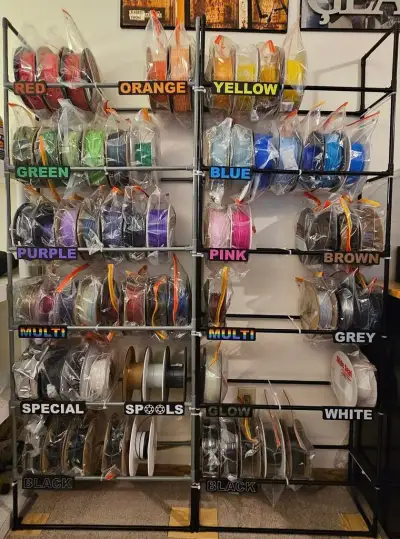

filament
shelf
lables


45

2
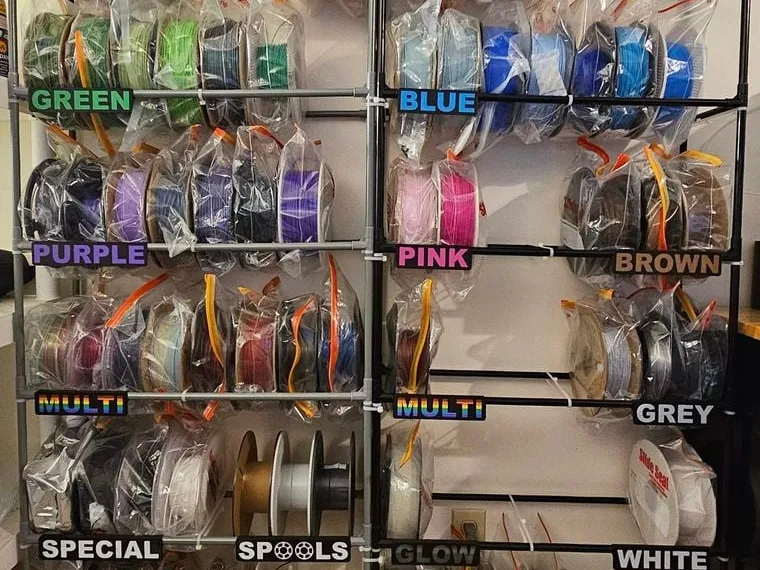
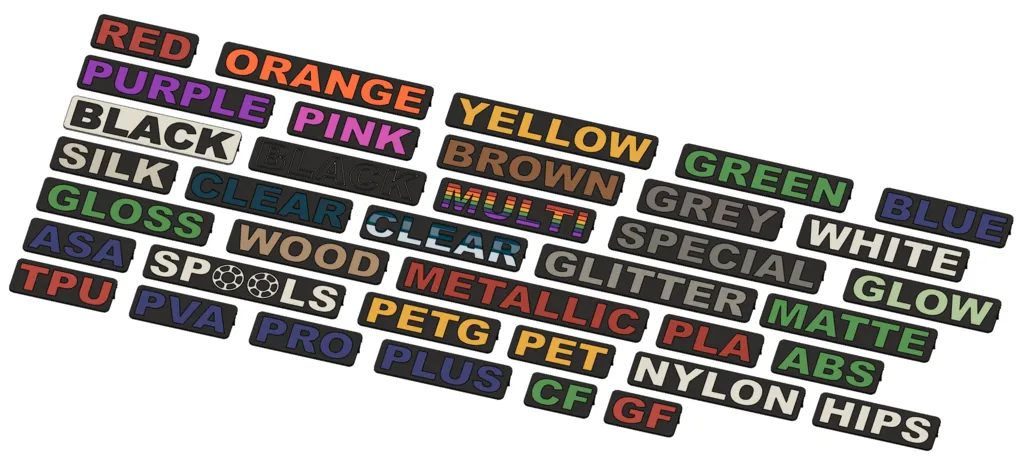
Filament shelf labels made to fit shoe racks or can be flat mounted
step and fusion files also included
see below for preparation instructions
How to colorize with Bambu studio, Orca Slicer, or Anycubic Slicer Next
Video Link
https://www.youtube.com/watch?v=j9duruJpSKs
STEP 1
Import File and use "Auto orient", "Rotate", or "Lay on face" tool to rotate the Label so the flat face is on the build plate
 Step 2
Open assembly view
 Step 3
Set the base color using the selection bar at the top
 Step 4
Color the letters using the fill tool located within the Color Painting Dialog
 Step 5
Exit assembly view, then slice and print!
 Please Note:
you can use the standard color painting option rather than the assembly view to color the model. However doing it this way only adds the color to the top surface of the letters instead of the full depth of the letter. This can cause the base color to bleed through into the letters resulting in a less desirable effect
How to remove clip for flat mounting with Bambu studio, Orca Slicer, or Anycubic Slicer Next
Video Link
Step 1
Import File and use "Auto orient", "Rotate", or "Lay on face" tool to rotate the Label so the flat face is on the build plate
 Step 2
- switch the "Process" bar from the "Global" to the "Objects" tab
- with the model selected click the "Split to Parts" button from the top bar
you should now see all the individual components in the objects list
NOTE: do not use the "Split to Objects" option as you can easily loose the position of the different components
 Step 3
-Click on the objects in the list one at a time until only the clip is highlighted on the model
-right click on the object and delete it

you can now colorize the model as shown above and print!

How to make custom labels with Bambu studio, Orca Slicer, or Anycubic Slicer Next
Video Link
Step 1
Import one of the blank labels, there are 5 base sizes to chose from based on length. 50mm, 100mm, 150mm, 200mm, and 250
you can further adjust the sizing using the scaling tool if preferred
make sure the label is facing flat side up (default)
 Step 2
-with the label selected click on the "Text Shape"
-Input your desired text and font and adjust the following settings
Size: 45
Thickness: 0.01
Text gap:0 (or adjust to preference)
Angle: 0 (or adjust to preference)
Embedded depth: 1
-Click on the front face of the label to place the text and adjust position to your liking
-exit text tool once finished
 Step 3
-Select the label and click on the "Mesh Boolean" tool
-Select the "Difference" tab
-Click on "Subtract from [Select]" and select the main body of the label
-Click on "Subtract with [Select]" and select the text shape
-Make sure "Delete Input is unchecked
-Click on Difference
you are now done this step exit the mesh Boolean tool
what you just did was cut away the base plate beneath the text so it is inset into the label by 1mm just Like the pre-made labels
 Step 4
you can now colorize the label using the Assembly view tool (see colorization instructions above)
 Step 5
use "Auto orient", "Rotate", or "Lay on face" tool to rotate the Label so the flat face is on the build plate
 Step 6
slice the file using a layer heigh greater them .01 mm
ensure first layer consists of both the letters and the surrounding label border
if you only see text on the first layer this means you didn't set the thickness to 0.01 in step 2 and you will need to restart the process from step 1

Originality of the Model
The author declares that this work is their personally original model
This model is licensed under the following terms:
Credit must be given to the creator
Only noncommercial uses of the work are permitted
Models(45)
 ALL_STEP.stepDesigner
14.37 MB

2025-09-07
 ABS_.stlDesigner
225.86 KB
2025-09-07
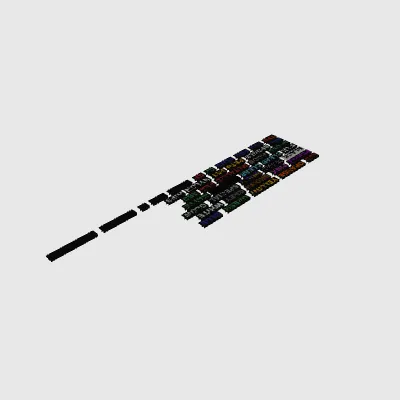 ALL_3MF.3mfDesigner
2.21 MB
2025-09-07
 ALL_STL.stlDesigner
8.25 MB
2025-09-07
 ASA_.stlDesigner
183.48 KB
2025-09-07
 BLACK_INVERTED.stlDesigner
233.77 KB
2025-09-07
 BLACK_OUTLINED.stlDesigner
378.79 KB
2025-09-07
 BLANK_50.stlDesigner
73.91 KB
2025-09-07
 BLANK_100.stlDesigner
93.54 KB
2025-09-07
 BLANK_150.stlDesigner
118.54 KB
2025-09-07
 BLANK_200.stlDesigner
141.59 KB
2025-09-07
 BLANK_250.stlDesigner
164.24 KB
2025-09-07
 BROWN.stlDesigner
271.37 KB
2025-09-07
 CF.stlDesigner
156.43 KB
2025-09-07
 CLEAR.stlDesigner
228.50 KB
2025-09-07
 CLEAR_FEED_THRU.stlDesigner
639.54 KB
2025-09-07
 GF.stlDesigner
154.18 KB
2025-09-07
 GLITTER.stlDesigner
249.11 KB
2025-09-07
 GLOSS.stlDesigner
350.18 KB
2025-09-07
 GLOW.stlDesigner
233.97 KB
2025-09-07
 GREEN.stlDesigner
224.20 KB
2025-09-07
 GREY.stlDesigner
211.12 KB
2025-09-07
 HIPS.stlDesigner
220.49 KB
2025-09-07
 MATTE.stlDesigner
154.67 KB
2025-09-07
 METALLIC.stlDesigner
243.34 KB
2025-09-07
 MULTI.stlDesigner
201.94 KB
2025-09-07
 NYLON.stlDesigner
198.23 KB
2025-09-07
 ORANGE.stlDesigner
291.68 KB
2025-09-07
 PET.stlDesigner
138.17 KB
2025-09-07
 PETG.stlDesigner
203.11 KB
2025-09-07
 PINK.stlDesigner
155.36 KB
2025-09-07
 PLA.stlDesigner
137.58 KB
2025-09-07
 PLUS.stlDesigner
245.98 KB
2025-09-07
 PRO.stlDesigner
225.08 KB
2025-09-07
 PURPLE.stlDesigner
255.55 KB
2025-09-07
 PVA.stlDesigner
137.58 KB
2025-09-07
 Red.stlDesigner
175.86 KB
2025-09-07
 SILK.stlDesigner
194.52 KB
2025-09-07
 SPECIAL.stlDesigner
293.25 KB
2025-09-07
 SPOOLS.stlDesigner
534.55 KB
2025-09-07
 TPU.stlDesigner
165.12 KB
2025-09-07
 WHITE.stlDesigner
159.65 KB
2025-09-07
 WOOD.stlDesigner
269.32 KB
2025-09-07
 YELLOW.stlDesigner
221.57 KB
2025-09-07
 BLUE.stlDesigner
199.30 KB
2025-09-07
View all(45)


