












star wars
Star Wars
StarWars
starwars
lightsaber
lightsaber stand
light saber
lightsaber display
display stand
rgb led
WLED
wled
RGB LED
jedi
sith

- 0.2mm layer, 2 walls, 15% infill

10-disc
PLA
Designer

203

41
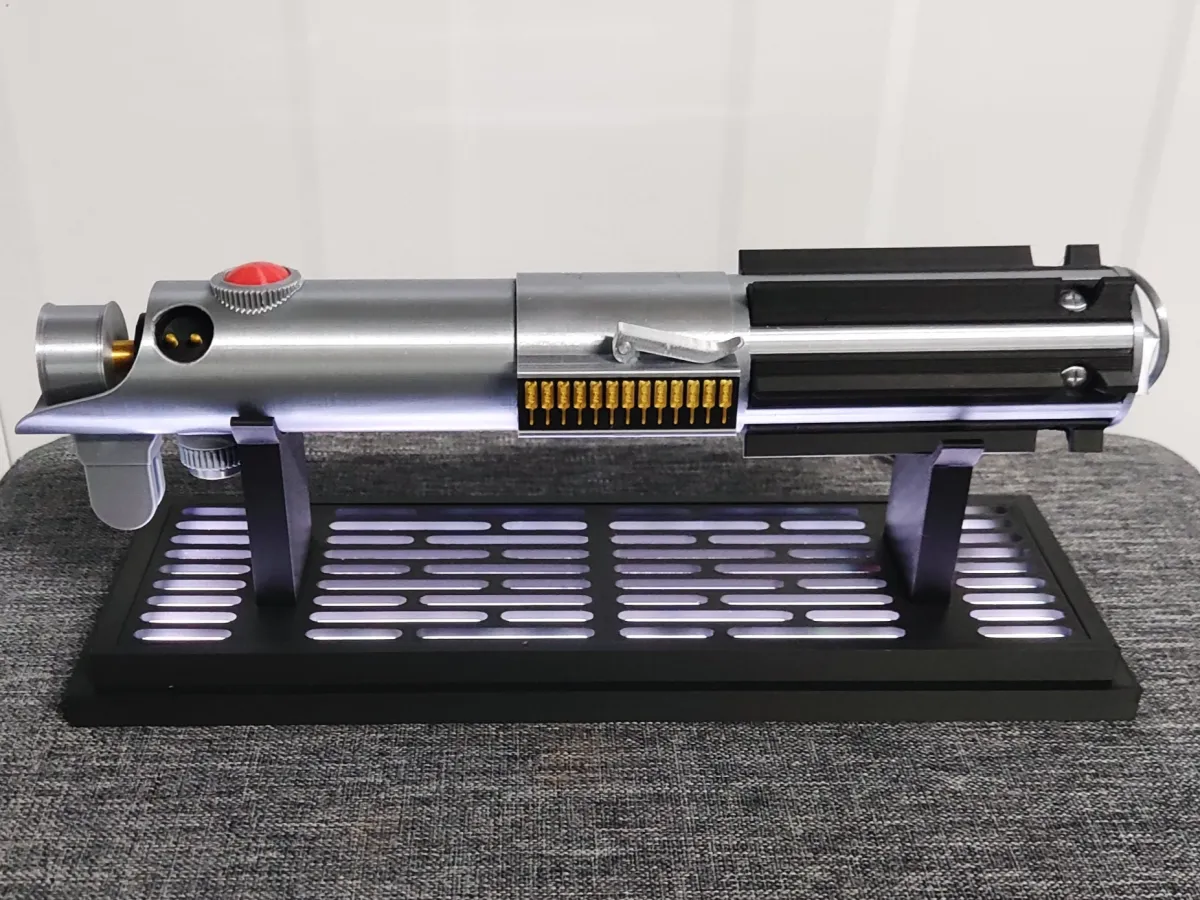
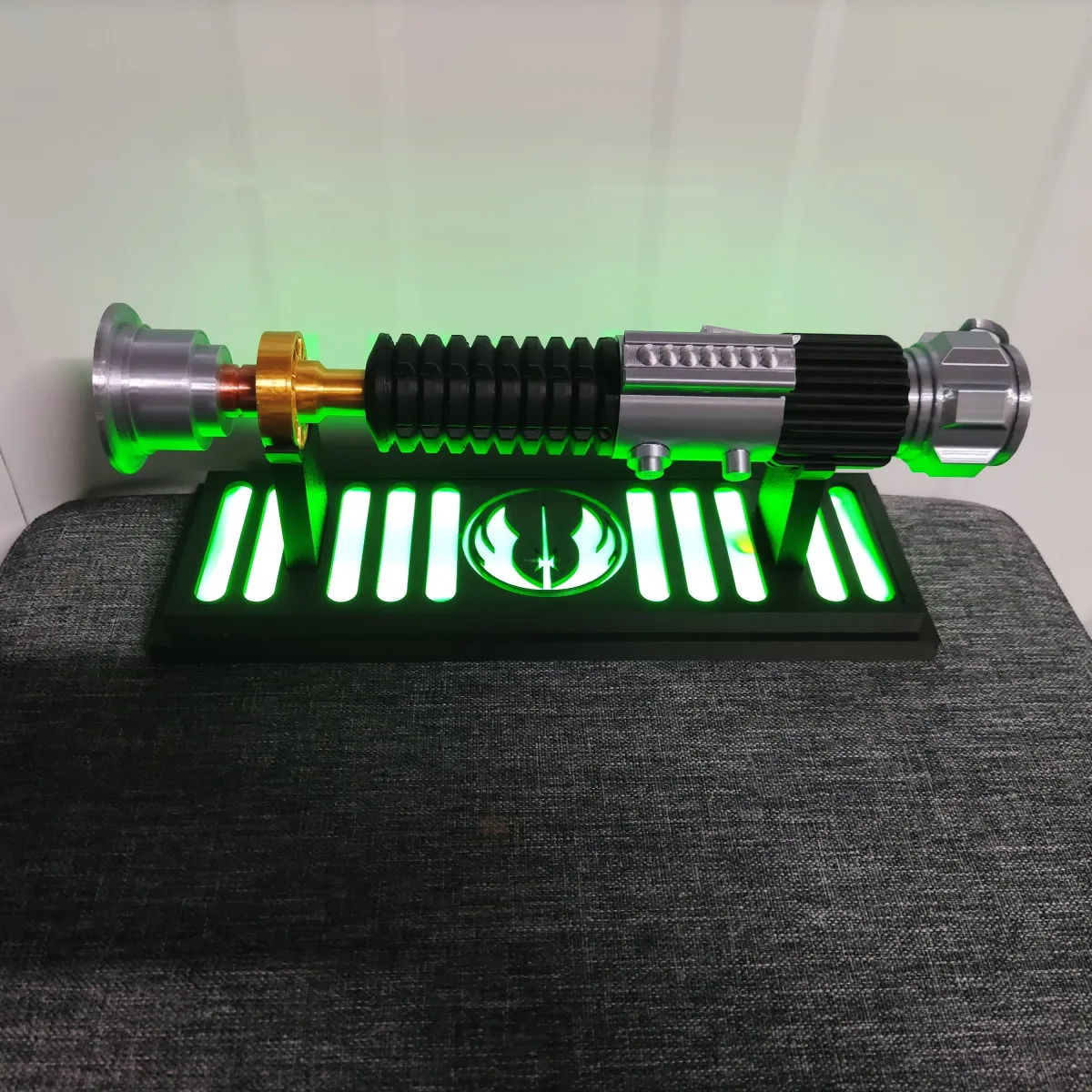
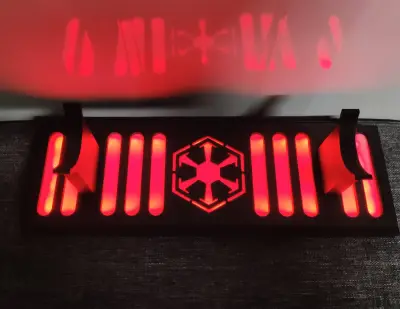
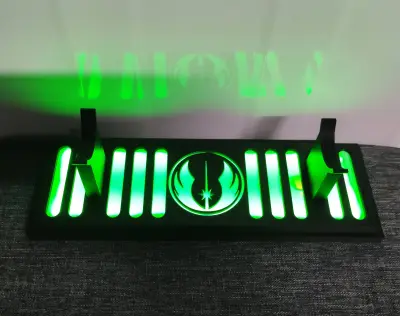
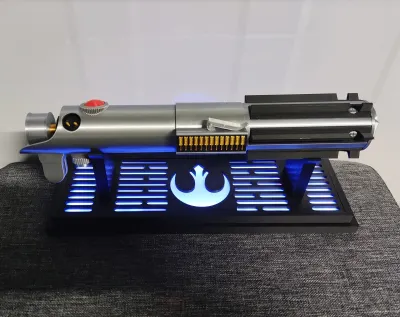
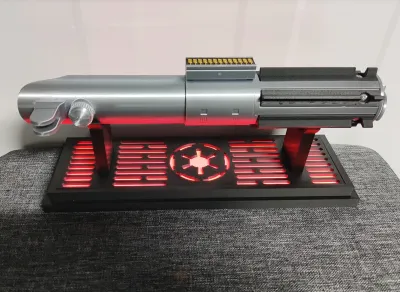
This Lightsaber Display Stand is designed to look like it belongs in a Rebel hangar, an Imperial command room, a Sith temple… or even a Death Star corridor. With multiple faction faceplate options available, there’s a design to suit almost every lightsaber-wielding allegiance.
The stand can be built as a clean, minimalist non-LED display, or upgraded with WS2812B RGB LEDs and a ESP32/ESP8266 Microcontroller running WLED for full colour control and dynamic animation effects all controlled over Wifi through a web broswer or the WLED app on Android and Apple app stores.
Whether you prefer a subtle showcase or a glowing centrepiece, this stand supports both.
I’ve attached a Bill of Materials (BOM) in the instruction files section, listing all the parts I use, along with links so you can easily source everything yourself.
Features
This stand is designed specifically for WS2812B addressable RGB LEDs and an ESP32 or ESP8266 (D1 Mini) running WLED. The base includes a clean cable pass-through hole so your USB power lead can exit neatly from underneath without being visible from the front.
There are six interchangeable faceplate options:
- Rebel- Empire
- Jedi
- Sith
- Shadow Collective
- Death Star Wall Panel
There is also a Lightsaber Blade support included, for those that want to display a full Lightsaber with the blade attached.
If there’s a specific logo or faction you’d like that isn’t listed, leave a comment and I’ll design one.
Saber Support Options
There are two support lengths included — long and short. I added both because lightsaber hilts vary wildly in shape and balance. Having two sizes lets you keep your saber sitting flat and level rather than rocking on the supports.
The supports are secured using 4x M3 screws. I personally use 12mm screws, but anything from 8mm to 16mm works perfectly. You can glue them in place, but screws are better because you can swap support heights later if you change sabers.
The screw holes are intentionally undersized at 2.5mm so the screws really bite into the legs and hold everything firmly. If you're using a drill or electric screwdriver, go slowly. Too much speed builds friction heat and can soften or melt the plastic — I’ve done it, and it’s frustrating.
The screw holes in the supports and faceplates are slightly offset so the parts only assemble in one orientation. I designed it this way so the clean textured side always faces outward, matching the photos and ensuring your finished build looks exactly as intended.
LED & WLED Installation Guide
This stand is designed around 60 LEDs per meter WS2812B strip, and it uses exactly 32 LEDs when built as designed.
You can of course adjust the count — just remember to update it inside WLED.
Step 1 – Flash WLED
Flashing WLED is very straightforward. Simply plug your ESP32 or D1 Mini into your laptop or PC using a USB cable, then go to install.wled.me in your browser. Follow the prompts and the web installer will flash WLED directly to your board.
Once installed, connect the board to your home WiFi, or leave it in hotspot mode if you prefer standalone control. Inside WLED settings, set the LED count to 32 (or however many LEDs you’re using).
Step 2 – Preparing the USB Power Cable
I power the LEDs directly from the USB cable rather than routing power through the microcontroller. While 32 LEDs will usually run fine through the board, powering them directly reduces stress on the voltage regulator and helps prolong its life.
Start by feeding your USB cable through the hole in the base. Strip back the red (+5V) and black (GND) wires. Then cut three short wire lengths (around 60–80mm). I colour code mine red, black and yellow to keep everything organised.
Twist the USB red wire together with your red extension wire, tin them with solder, and trim if needed. Do the same for the black wire. I usually leave about 10mm between the USB insulation and the tinned joint.
Step 3 – Soldering to the LED Strip
Make sure you solder to the DI (Data Input) side of the LED strip. The strip has a direction, and if you connect to DO (Data Out) it won’t work.
When soldering in tight spaces, it’s much easier to work from one side to the other. I solder red (5V) first, then yellow (data), then black (ground). If you try to install the middle wire last, you can accidentally re-melt the joints on either side. Working sequentially helps prevent that.
After soldering, add a small amount of hot glue where the USB insulation ends and gently pull the cable into the base hole. The glue forms a plug inside the hole and acts as strain relief. This prevents stress on the solder joints if the cable gets pulled.
Step 4 – Connecting the Microcontroller
For a D1 Mini (ESP8266):
Red wire to 5VBlack wire to GND
Yellow (data) to D4 / GPIO2
For an ESP32 Super Mini C3:
By default WLED uses GPIO2, but it needs to be changed it to GPIO4 or it won't owrk, this also sits closer to 5V and GND pins, making wiring neater. You can use any valid GPIO — just update it inside WLED.
Why I Use Two Board TypesThe D1 Mini is perfect for smaller builds (generally under 100 LEDs). It’s cheap, reliable, and more than capable for something like this stand.
The ESP32 variants are more powerful, offer better WiFi stability, and handle larger LED counts or more complex animations more smoothly. For this stand, either board works perfectly.
Step 5 – Mounting Everything
Once soldered, gently twist the controller to tidy the wires, then secure it inside the base using double-sided or VHB tape.
On the D1 Mini, I place the tape over the WiFi chip area. This also conveniently blocks the onboard status LED so you don’t get unwanted light bleed inside the stand.
Position the controller roughly under one of the support areas with the USB port facing inward. This keeps it accessible if you ever need to reflash or adjust settings.
Finally, stick the LED strip around the inner wall of the base using the adhesive backing.
Final Assembly
Attach the supports to the faceplate using your 4x M3 screws, ensuring the offset holes align correctly. Once secured, place the faceplate onto the base.
That’s it.
Power it up, open the WLED app, and explore the endless colour combinations and animations available.
Power Recommendation
Use a decent 5V USB power supply.
2A or higher is recommended for full brightness and stable operation.
Final Warning
Once you start playing with WLED effects…
you may never stop.
If you build one, tag me — I love seeing different saber + faction combinations.
Boosts are always appreciated and help fund more galactic designs
Quick Build Steps (Short Version)
- Flash WLED to your ESP8266 (D1 Mini) or ESP32 using install.wled.me, then set your LED count to 32 in WLED.
- Feed the USB power cable through the hole in the base, then strip the red (+5V) and black (GND) wires.
- Cut three short wires (around 60–80mm), then twist and tin them to the USB red/black so you have neat extension leads (red, black, and a yellow data wire).
- Solder the wires to the LED strip on the DI / input end (not DO): solder 5V (red) first, then Data (yellow), then GND (black).
- Add strain relief by putting a small blob of hot glue at the end of the USB cable insulation and pulling it into the base hole so it forms a “plug” inside.
- Solder wires to the controller – Red to 5V, black to GND, yellow to D4 (GPIO2) on a D1 Mini, or to your chosen GPIO (e.g. GPIO4) on an ESP32.
- Mount the controller inside the base using VHB/double-sided tape, with the USB port facing inward for easy access later.
- Stick the LED strip around the inner wall of the base using the strip’s adhesive backing.
- Attach the supports to the faceplate using 4x M3 screws (8–16mm, I use 12mm), making sure the offset holes line up correctly.
- Place the faceplate onto the base, power it up, and enjoy the WLED colours and animations.
Item | Quantity | Links |
| D1 Mini (or ESP32) | 1 | https://www.aliexpress.com/item/1005006235653025.html? |
| ESP32 SuperminiC3 (or D1 Mini) | 1 | https://www.aliexpress.com/item/1005006599545782.html? |
| WS2818B DC5V RGB LED (60 IP30) | 1 Meter | https://www.aliexpress.com/item/1005006766819624.html? |
| M3 12mm Screw | 4 | https://www.aliexpress.com/item/32969042589.html |
USB cable (At Least 100 cm) | 1 | https://www.aliexpress.com/item/1005008045179029.html |
| Wire 26 AWG Red, Black, Yellow | as needed | https://www.aliexpress.com/item/4001283806251.html |
| Soldering Iron | 1 | https://www.aliexpress.com/item/1005007099216072.html |
| Solder | as needed | https://www.aliexpress.com/item/1005008695639704.html |
| Hot glue | as needed | https://www.aliexpress.com/item/1005008055271799.html? |
Originality of the Model
The author declares that this work is their personally original model
This model is licensed under the following terms:
This work is licensed under a Standard Digital File License. Digital files have a strict non-commercial, personal use only license.
You shall not share, sub-license, sell, rent, host, transfer, or distribute in any way the digital file or 3D printed versions of this object, nor any other derivative work of this object in its digital or physical format (including remixes of this object). You can not host these files on other digital platforms, web stores or cloud repositories. The objects may not be used in any way whatsoever in which you charge money, collect fees.
Models(1)
- Saber+Stand.3mfDesigner

9.75 MB

2026-06-04


